
📌 Problem
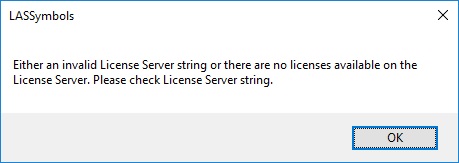
While entering the License String in the LP360 License Manager you receive the error message, "LASSymbols: Either an Invalid License Server string or there are no licenses available on the License Server. Please check License Server string."
🔍 Root Cause
This error indicates that LP360 was unable to validate the license server information required to check out a license or your hosted server is no longer serving any valid licenses.
Important:
In current versions of LP360, the license server string is normally set automatically when you sign in to LP360 Online in the License Manager . Most users should not need to manually enter a license string.
When this error applies
You may encounter this error only in the following situations:
- The license string was entered manually.
- LP360 was unable to retrieve the license string automatically after sign‑in.
- Network restrictions prevented validation of the license server.
If you are unsure why you are seeing this message, follow the full troubleshooting workflow here:
LP360 Licensing Troubleshooting – Unable to Get a License
✅ Probable Resolutions
-
Invalid or altered license string
If a license string was entered manually, verify that it matches exactly what was provided in your LP360 Portal -> Admin -> Organization section. License strings can be altered when copied from emails or documents that automatically insert hyperlinks or formatting.
-
Network or firewall filtering
LP360 requires outbound TCP access to the license server and ports specified in your LP360 Portal -> Admin -> Organization section. If these ports are blocked or filtered by a firewall, security appliance, or network policy, the license server cannot be validated and this error may occur. For hosted perpetual licenses, direct outbound connectivity is required. Proxy servers are not supported in this configuration.
To verify connectivity: Ensure outbound TCP port 5053 and the additional port specified in your LP360 Portal -> Admin -> Organization section are open. Confirm that outbound connections to the license server hostname are not filtered or redirected.
If necessary, use a network diagnostic tool such as Microsoft's PortQry to test connectivity. If you do not manage network security for your environment, contact your IT administrator for assistance
-
Security or endpoint protection software
Some security or antivirus software may interfere with license validation. Ensure LP360 is permitted to communicate outbound to the license server.
Add the required Firewall and Defender Style Program Exceptions for LP360
-
HTTPS-only network enforcement
The hosted perpetual license server does not use SSL or TLS for client-server communications. Some firewalls, proxies, or security appliances restrict outbound traffic to HTTPS (TCP port 443) or enforce protocol translation. In these environments, communication to the hosted perpetual license server using the default port may be blocked even when ports appear open.
If this applies, the license server connection can be configured to use HTTPS by modifying the license string.
Using HTTPS for the hosted license server
- Open LP360 → File → License Manager
.
- Select Perpetual as the license type.
- Copy the License String provided in your LP360 Portal -> Admin -> Organization section, and paste into the appropriate box in the Credentials dialog. Locate the
port=5053portion of the License String. - Change the port value to
port=443. - Select Set to apply the updated License String.
This forces the license server connection to use HTTPS, which may be required in environments that block or filter non-HTTPS traffic.
- Open LP360 → File → License Manager
-
Verify Server Status
For hosted perpetual licenses, the license server infrastructure is managed by GeoCue. End users do not manage the server itself, but administrators can verify license availability and usage through the Perpetual Client Portal.
- Sign in to the Perpetual Client Portal.
- Confirm that licenses are present and not fully in use.
- If licenses appear available but cannot be checked out, the issue is typically related to network connectivity or client‑side restrictions.
Learn How to check license server status and license usage in the Perpetual Client Portal
📬 Need Help?
If this error persists after verifying the above, Contact Support and include:
- Your LP360 version
- Whether the license string was entered manually
- The exact error message shown
Comments
0 comments
Please sign in to leave a comment.