
Applies to DJI camera only systems (P4P RTK, P1, M3E, M4E), and sensor with a TruNav POS.
Introduction
In the Trajectory Processing Wizard for a TrueView sensor with TruNav or a DJI Photo PPK Processing, the GNSS information is processed in an attempt to generate a good quality rover position file for use in downstream processing. While processing the GNSS solution, a command window displays the quality level (Q level) for each epoch of the solution.
Review this information for the entire flight using the Post Process Trajectory Plot button on the Sensor tab of the LP360 ribbon, or when running Complete Job from the Job Manager
.
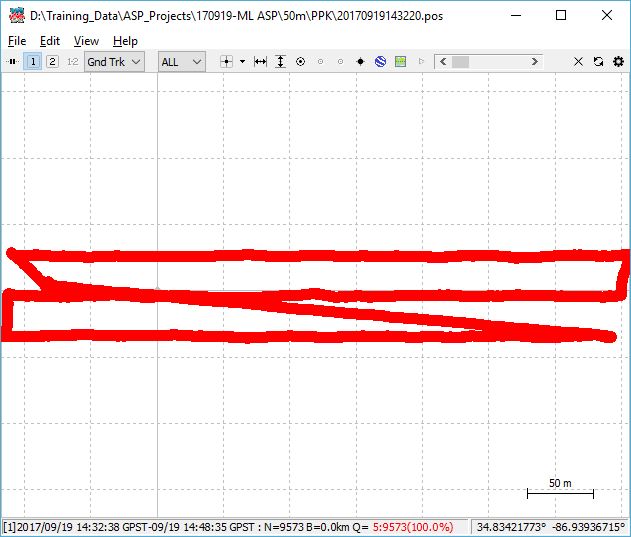
In all cases, the goal is to achieve Q1 – Fixed Solution for all epochs. The sections below explain how to interpret each GNSS Quality Level and how to troubleshoot those that require corrective action.
🧪 Quick Diagnostic: Error → GNSS Quality Level
| Error Message / Symptom | Likely Q‑Level | Meaning |
|---|---|---|
| “An error occurred creating the output ‘POS’ file” “An error occurred scanning POS file” |
Q0 | No GNSS solution; POS file not generated |
| Trajectory completes but accuracy is poor or float | Q2 | Solution computed but ambiguities not fixed |
| Processing completes using rover data only | Q5 | Base station data not used |
See the corresponding GNSS Quality Level section below for root causes and probable resolutions.
GNSS Quality Levels
Q0 – Quality Level 0 – No Solution ⚠️ Action Required
📌 Problem
LP360 reports errors such as “An error occurred creating the output ‘POS’ file” or “An error occurred scanning POS file”, and trajectory processing fails.
🔍 Root Cause
GNSS observations could not be resolved into a usable position solution, preventing LP360 from generating a rover position (POS) file.
🧠 What is Q0?
Q0 indicates that no valid GNSS position could be computed due to missing, incompatible, or invalid GNSS inputs.
✅ Probable Resolutions
- Verify ephemeris coverage
The ephemeris file contains satellite orbit and timing information required for GNSS post‑processing. LP360 typically retrieves this data automatically during trajectory processing, or it can be configured explicitly if needed.
In some environments, network security controls (firewalls, proxy servers, or endpoint protection software) can block the automatic ephemeris download process. When this occurs, the download may fail or return incomplete data, which can lead to Q0 (No Solution) or Q2 (Float Solution) results.
For details on where ephemeris files are configured and how they are obtained, see:
Learn more about ephemeris settings in the Trajectory Processing Wizard
Learn more about ephemeris auto‑download ports and network requirements
Learn more about downloading GNSS ephemeris files
- Verify base station coordinates
Confirm latitude/longitude and ellipsoidal height are entered correctly. Swapped coordinates or orthometric height will prevent a solution.
Learn more about base station coordinate requirements
- Check for gaps in the rover and base station observations
Review the base station RINEX file to confirm continuous data during the flight.
Learn more about troubleshooting base station observation files
- Test GPS‑only ephemeris
As a diagnostic step, reprocess using GPS‑only ephemeris to rule out problematic mixed‑constellation data.
Learn more about the Trajectory Processing Wizard
- Verify RINEX Version
Verify the version of the base RINEX file is supported. Currently, RINEX version 2.10, 2.11, 2.12, 3.00 through 3.04.
Q1 – Quality Level 1 – Fixed Solution ✅ Expected
Status: Reference only (no action required)
Q1 represents a fixed GNSS solution and is the desired outcome. When Q1 is achieved, no corrective action is required and processing may continue.
Q2 – Quality Level 2 – Float Solution ⚠️ Action Required
📌 Problem
Trajectory processing completes, but GNSS quality remains at Q2, resulting in reduced positional accuracy.
🔍 Root Cause
GNSS signal quality or satellite geometry was insufficient to resolve carrier‑phase ambiguities.
🧠 What is Q2?
Q2 indicates a float solution where a position is computed, but not fixed to survey‑grade accuracy.
✅ Probable Resolutions
- Increase flight duration
Flights shorter than ~10 minutes may not collect sufficient GNSS data for a fixed solution.
- Raise elevation and SNR masks
Raise the elevation mask from the default 15° to remove satellites that are low to the horizon from being used in the solution. In LP360 Drone → Trajectory Processing Wizard and adjust the Elevation Mask and SNR Mask.
Learn more about the Trajectory Processing Wizard
Learn more about reviewing Trajectory Plot for TrueView 3DIS (TruNav)
An approach whenever you get a float solution:
- First check the number of satellites. If there are several of them (for example, ~10 satellites), you can raise the elevation mask and SNR mask. If the number of satellites is small (for example, ~4 or 5), check the signal’s SNR.
- The values typically used as a starting point for debugging are an elevation mask of 20 and an SNR mask of 35.
- If the solution remains float, increase the elevation mask again to 25. If a fixed solution is achieved, verify that the number of satellites remains greater than 4 or 5.
- To minimize the chance of having a limited number of satellites, plan flights during optimal dilution of precision (DOP) times using a GNSS planning tool such as Trimble’s online GNSS planning tool.
- The SNR mask can be increased in a similar fashion (for example, to 45) if needed.
- Convert base station observation file to RINEX 3.0
The Convert RINEX option (LP360 → Post Processing Wizard → Convert Base Observation File to RINEX 3.0) can be used to convert the base station file to the preferred RINEX 3.0 format. We do not have a definitive rule for when this conversion is required.
In some cases, this conversion has enabled a fixed solution (Q1) when only a float solution (Q2) was being achieved and all other inputs appeared correct. In other cases, processing without converting the base station file was required to achieve a fixed solution.
- Verify base station elevation and geoid settings
The base station elevation should be entered using the ellipsoidal elevation with the appropriate geoid adjustment applied in the processing options.
In some cases, users have been able to achieve a fixed solution by entering the orthometric height for the base station elevation as a workaround. This approach may work in specific scenarios but is not guaranteed and should be used with caution.
Q3 – Quality Level 3 – SBAS Solution ✅ Expected
Status: Reference only
Q3 represents an SBAS‑based solution and is not typically encountered in LP360 workflows.
Q4 – Quality Level 4 – DGPS Solution ✅ Expected
Status: Reference only
Q4 represents a DGPS‑based solution and is not typically encountered in LP360 workflows.
Q5 – Quality Level 5 – Single Solution ⚠️ Action Required
📌 Problem
GNSS processing completes using rover‑only data, resulting in reduced accuracy.
🔍 Root Cause
Base station observations were missing, incompatible, or did not overlap with the rover data.
🧠 What is Q5?
Q5 indicates a single‑point solution where only rover observations were used.
✅ Probable Resolutions
- Verify base station observation file
Ensure a valid base station file is loaded if differential processing is intended.
- Confirm time overlap
Verify the base station file starts before and ends after the rover observations.
Learn more about verifying time overlap in base station observation files
- Verify base station coordinates
Confirm latitude/longitude and ellipsoidal height are entered correctly. Swapped coordinates or orthometric height will prevent a solution.
Learn more about base station coordinate requirements
Q6 – Quality Level 6 – PPP Solution ✅ Expected
Status: Reference only
Q6 represents a PPP‑based solution and is not typically encountered in LP360 workflows.
🔗 See Also
- Trajectory Processing Wizard
- TrueView sensor with TruNav processing with LP360
- Trajectory Plot Review for TrueView 3DIS (TruNav)
- Post Process Trajectory Plot
- Troubleshooting Base Station Observation Files
- Downloading GNSS Ephemeris Files
📬 Need Help?
If you're still unable to resolve the issue, please Contact Support and include your trajectory processing report and base station observation file.
Comments
0 comments
Please sign in to leave a comment.