
When the auto download of the ephemeris and alternate navigation is not working you may elect to manually determine an appropriate alternate navigation file to download from the NASA CDDIS site while your IT resolves any connection issues.
Learn how to determine the ephemeris file to download from NASA’s CDDIS.
- Determine the start/end times in UTC or GPS for your mission/Cycle to be processed. The difference between UTC and GPS time is only a few seconds, so it won’t matter for the purpose of selecting an appropriate ephemeris file. For an example to follow, if your data was collected between 13:00 – 17:00 UTC on April 26, 2021.
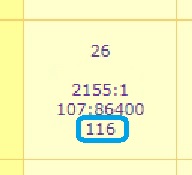
- To determine the alternate navigation file to download, first determine the Julian Day for your observation by using the interactive calendar provided by a third party. This calendar presents dates specific to the GPS community. The data for each day are as follows. The fourth line contains the Julian Day Number that you will need to locate the appropriate file to download from the site.
| Row | Example | Definition |
| First | 1 | Calendar day of the month |
| Fourth | 183 | Julian Day Number |
Why this matters: Modern navigation filenames (e.g., BRDC00IGS_R_20211160000_01D_MN.rnx.gz) use a Year + Julian Day (YYYYJJJ) format instead of the older brdc###0.YYn naming convention.
The Julian Day (JJJ) you determined above directly maps to the filename:
- YYYY = Year of observation (e.g., 2021)
- JJJ = Day of year (e.g., 116)
In our example (April 26, 2021 → Julian Day 116), the corresponding file is:
BRDC00IGS_R_20211160000_01D_MN.rnx.gz
This replaces the legacy naming approach where the same file would have appeared as:
brdc1160.21n.Z
- Navigate to the NASA CDDIS site.
Note: You will need to create an EarthData login if this is your first time using the site. Navigate to https://cddis.nasa.gov/archive/gnss/data/daily/ if you end up elsewhere during the login process. You will see a list of available years for the daily products. - Select the applicable year for your observation, 2021 in our example.
- Scroll down to the bottom and select the BRDC folder.
-
Locate the appropriate navigation file for your date. In most cases, this will be:
BRDC00IGS_R_YYYYJJJ0000_01D_MN.rnx.gz
where:
- YYYY = year
- JJJ = Julian Day
Some archives may instead provide equivalent files from other analysis centers (e.g.,
BRDM00DLR_S_YYYYJJJ0000_01D_MN.rnx.gz). These are also acceptable.For our example (Julian Day 116), either of the following would be valid:
BRDC00IGS_R_20211160000_01D_MN.rnx.gz
BRDM00DLR_S_20211160000_01D_MN.rnx.gz
- Once the file is downloaded, you will need a program, such as 7-zip, to be able to right-click on the gz file and extract the rnx that has been compressed therein. For our example, it is the BRDM00DLR_S_20211160000_01D_MN.rnx that we would provide to LP360 as the alternate navigation file for use during processing of the trajectory solution.
💡 Support Tip: If users are unsure which file to pick, any BRDC* or BRDM* file matching the correct Julian Day is typically sufficient for LP360 trajectory processing.
Comments
0 comments
Please sign in to leave a comment.